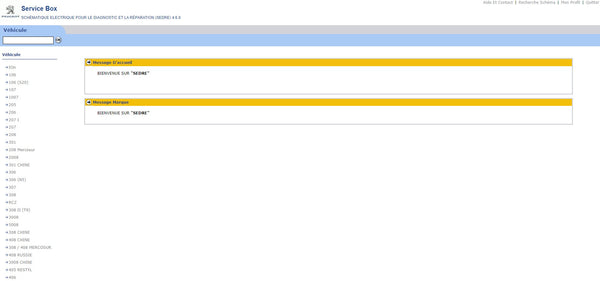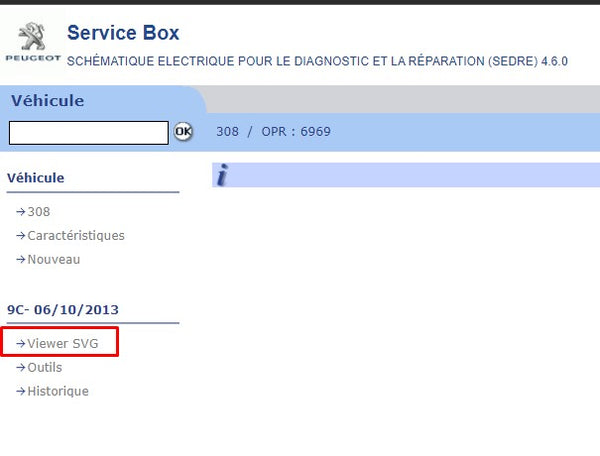


Welcome to our installation guide dedicated to Citroën / Peugeot Service Box + SEDRE!
Citroën/Peugeot Service Box (11/2013) is an essential after-sales software for Peugeot vehicle owners. It offers complete access to all essential technical documentation across Peugeot's global after-sales network. Whether you're looking for repair manuals , wiring diagrams (SEDRE), parts catalogs , diagnostic manuals , or labor time information, you'll find everything you need to maintain and repair your Peugeot vehicle.
Our detailed guide will walk you through the installation process of Citroën/Peugeot Service Box + SEDRE, allowing you to fully utilize all its features. Whether you're a professional mechanic or a DIY car enthusiast, you'll find all the information you need on this page to easily configure this essential software.
Follow our clear and precise instructions to correctly install Citroën/Peugeot Service Box + SEDRE on your computer system. Get quick and easy access to a wealth of technical resources that will help you care for your Peugeot vehicle like a pro.
Dive into the world of car repair now with Citroën / Peugeot Service Box + SEDRE and ensure your Peugeot remains in perfect working order for years to come!
Download Peugeot Service Box 2013 here
PEUGEOT SERVICE BOX + SEDRE INSTALLATION 2013
Before installing, make sure that you have working and up-to-date JAVA and Adobe Reader software on your PC.
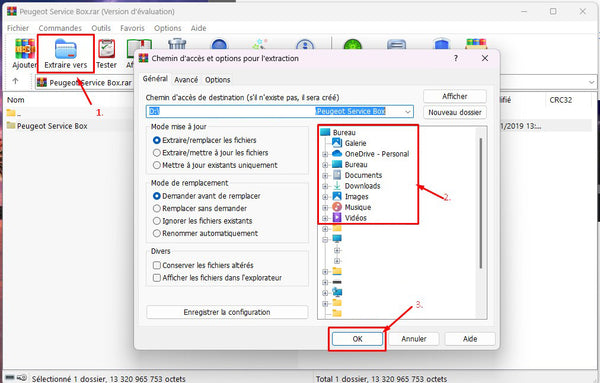
- Extract the contents of the downloaded archive "Peugeot Service Box.rar" using WinRAR (free) only. Choose the location in your documents.
- Open the extracted folder, which contains three installation DVDs. Start by opening the first one by double-clicking it. Opening DVDs (ISO files) is only available on Windows 8, 10, and 11. For Windows 7, use software like Daemon Tools Lite to open these DVDs.
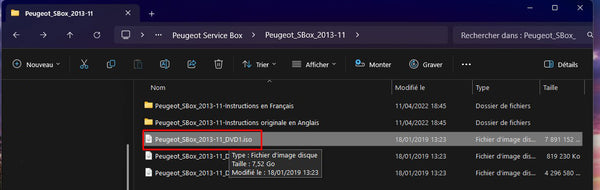
- Opening the first DVD may take a few seconds or even a few minutes. Please wait patiently for it to open.
- Double-click on "setup.exe" to begin the installation of DVD 1.
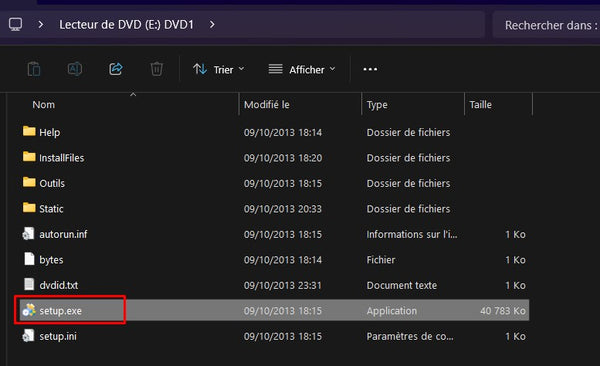
- Choose the language, then follow the steps as shown in the images.

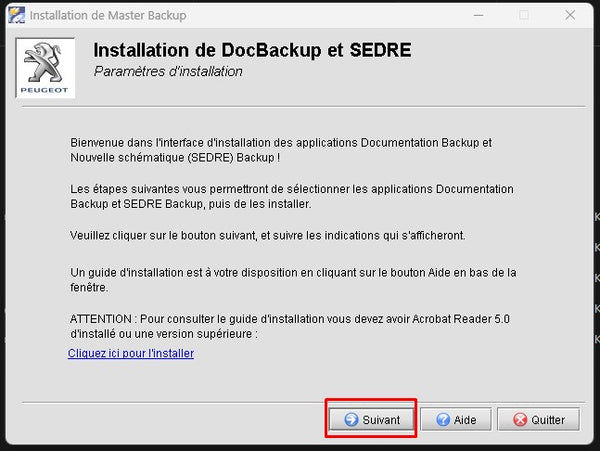
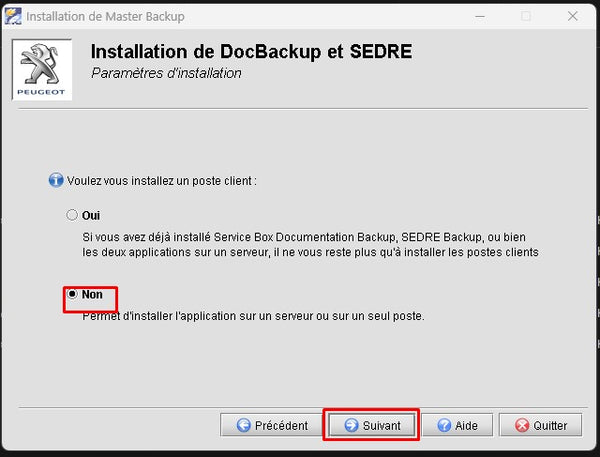
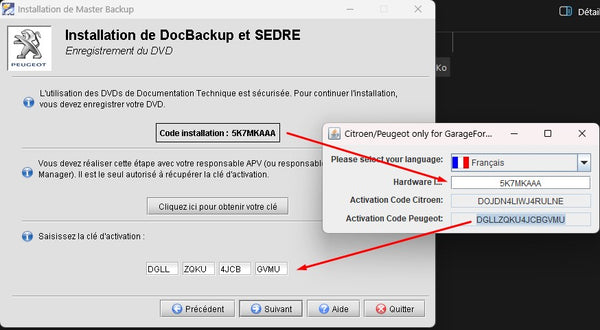
- Note the installation code provided by the installer. This code will be used to generate the activation key via the activator. Copy this code (Ctrl+C).
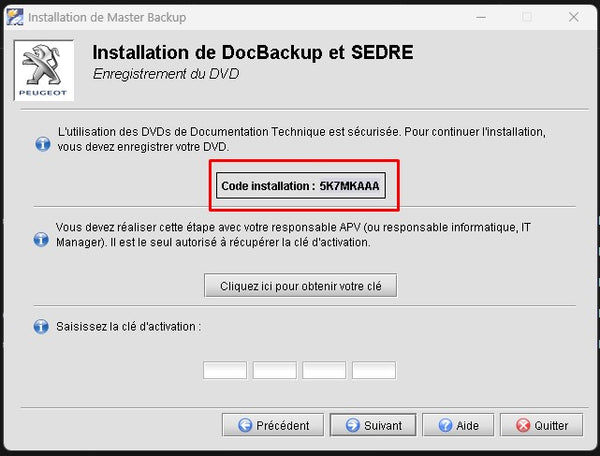
- Go back to the Peugeot Service Box folder (not the archive but the extracted folder). Access "Peugeot_SBox_2013-11_Instructions in French", then "SBox Key Generator V2".
Right-click on the PSA SBox Keygen.jar tool, choose "Open with..." and select JAVA (and not WinRAR as offered by default).

- Choose your language, then paste (Ctrl+V) the installation code into the "Hardware…" box. The code may already be filled in.
- This will automatically generate the activation key. Copy the "Peugeot Activation Code" key.
- Paste the key into the installation location and click Next.
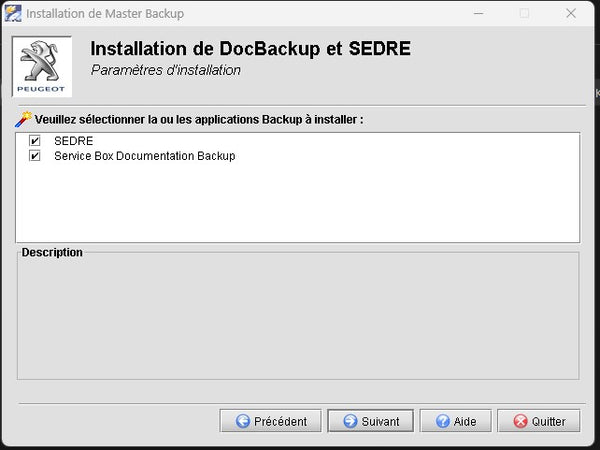
- The installation will resume; please verify that SEDRE and Service Box are selected. Click Next.
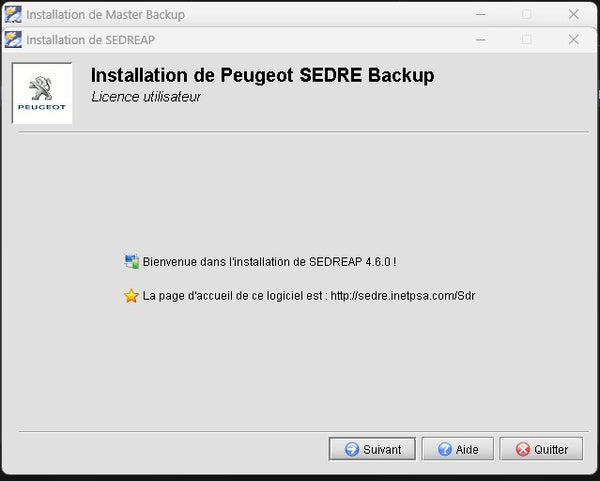
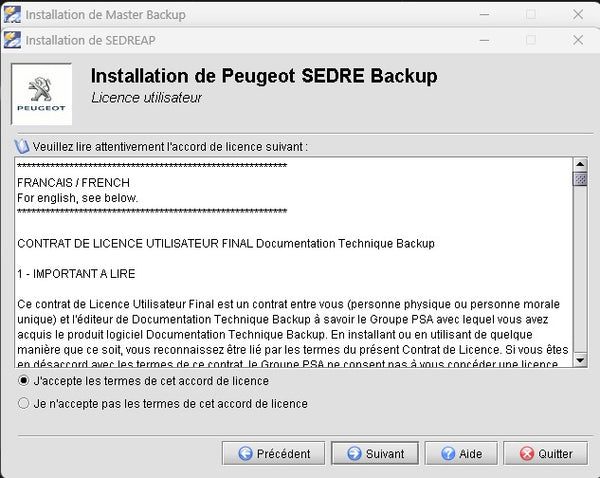
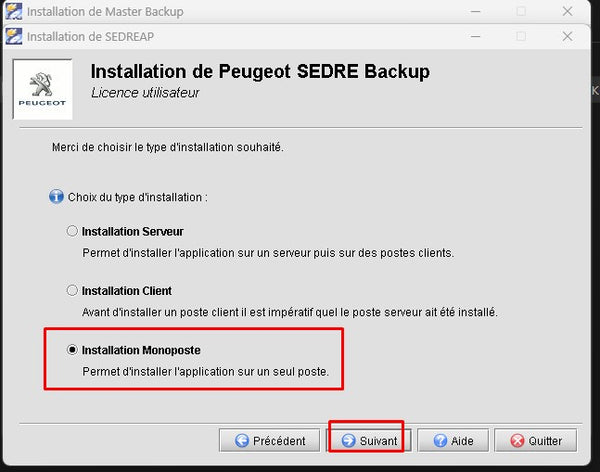
- Choose "Single-user installation".
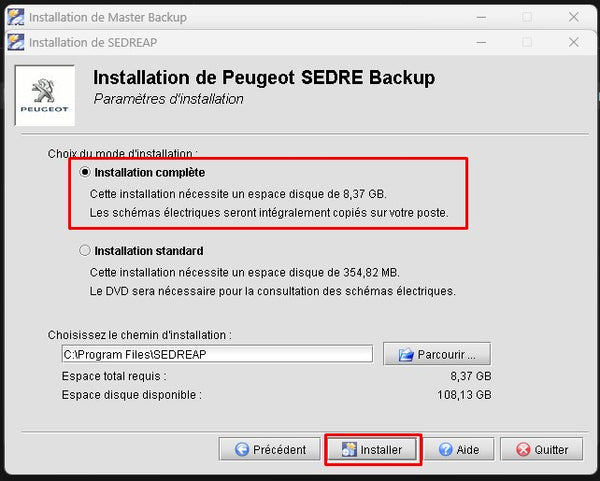
- Select "Complete Installation" for the SEDRE software.
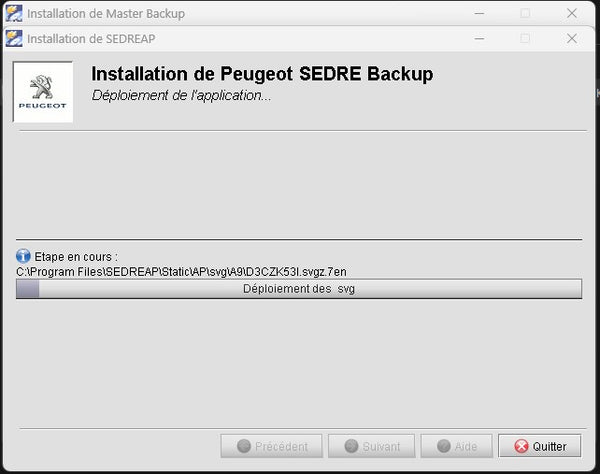
- Installation can take from 5 to 10 minutes with an SSD, up to almost 1 hour with a conventional HDD.
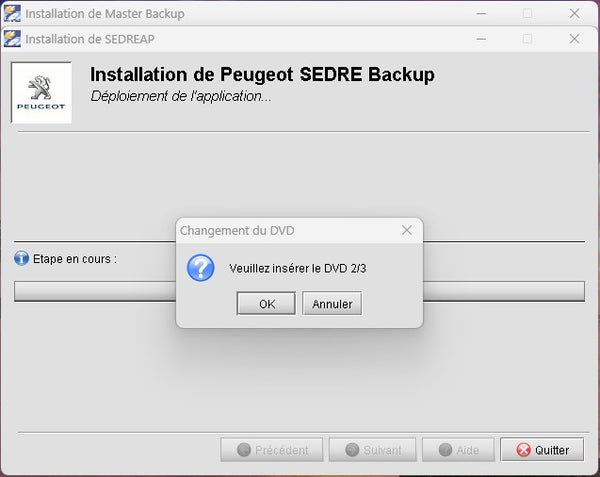
⚠️ DVD change during installation (DVD 1 → DVD 2 → DVD 3)
During the installation of Peugeot Service Box 2013 , the program successively requests DVD 1, DVD 2 and then DVD 3 .
It is imperative to follow the following procedure:
-
Start the installation with DVD 1 mounted on a virtual drive
Example: DVD 1 mounted on drive E: -
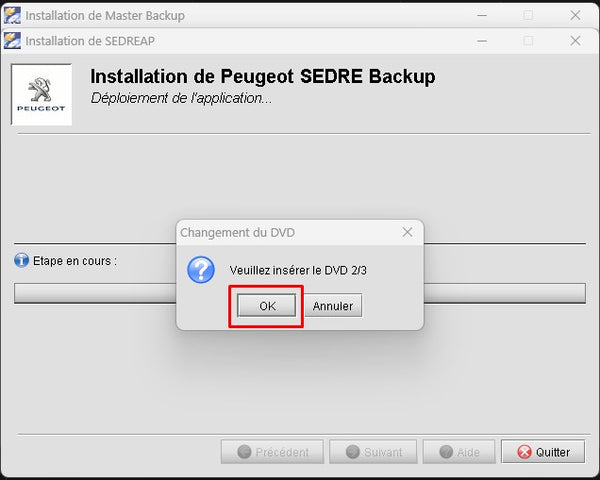
When the message "Insert DVD 2" appears:
-
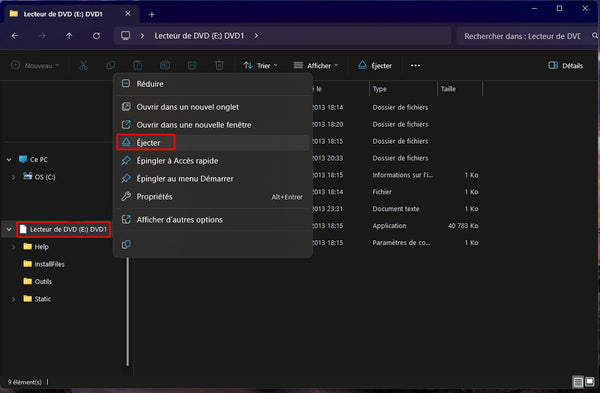
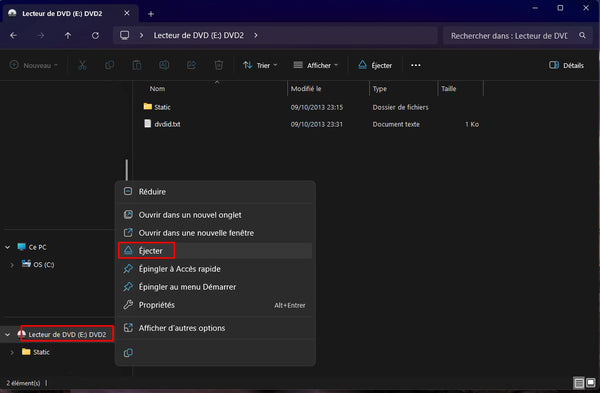
You must eject DVD 1 from the virtual drive.
-
Next, mount DVD 2 on the same drive (example: E: )
-
-
Proceed in exactly the same way for DVD 3 :
-
Eject DVD 2
-
Mount DVD 3 on the same drive letter
-
❗ Important point to remember
The software only detects the next DVD on the initial drive letter .
👉 If DVD 2 (or DVD 3) is mounted on a different drive letter , the message
"Insert DVD 2" will remain displayed indefinitely and the installation will be blocked .
✅ Rule to follow
Always eject the previous DVD before mounting the next one, and always use the same drive letter.
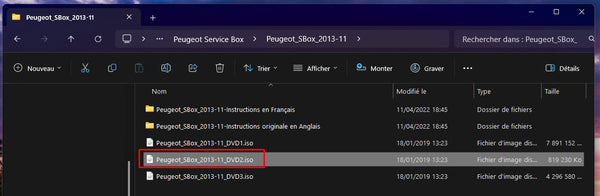
- Go back to your Peugeot SBox folder, then open DVD2.
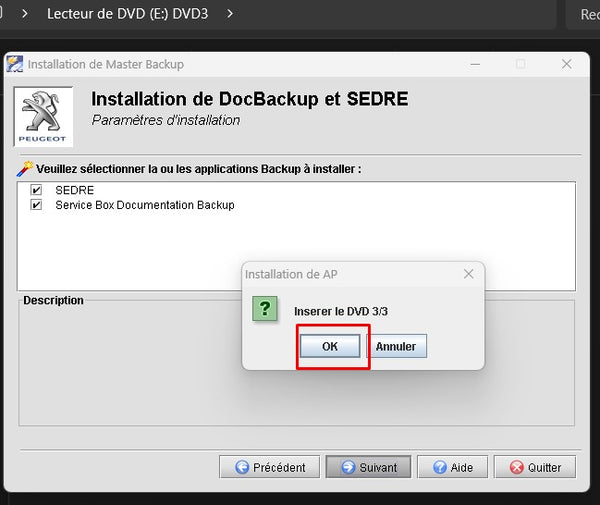
- Wait for the DVD to open, then click OK in the installation to continue.
- Repeat the same process for DVD 3.
- Open DVD 3 after ejecting DVD 2.

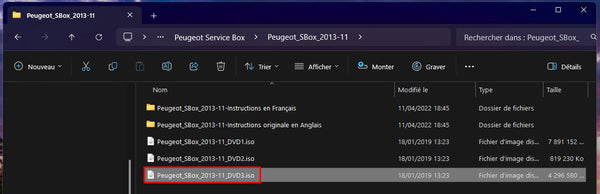
- Wait for DVD 3 to open, then click OK to continue the installation.
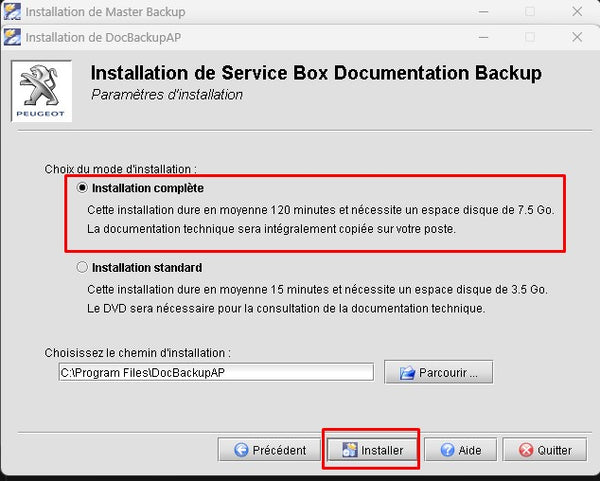
- Proceed with the installation of Service Box.
- Choose "Single-user installation", then "Complete installation".

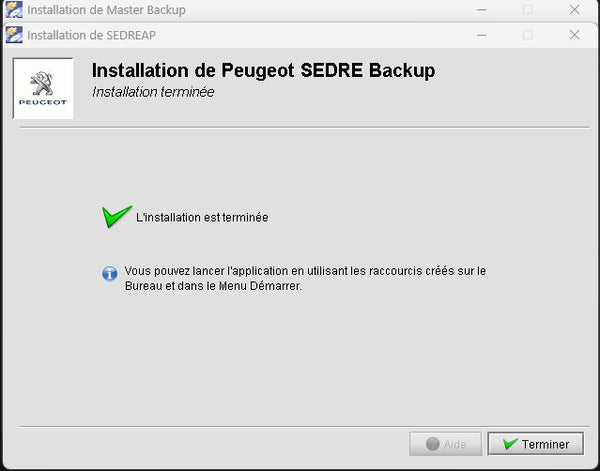
- Wait until the installation is complete.
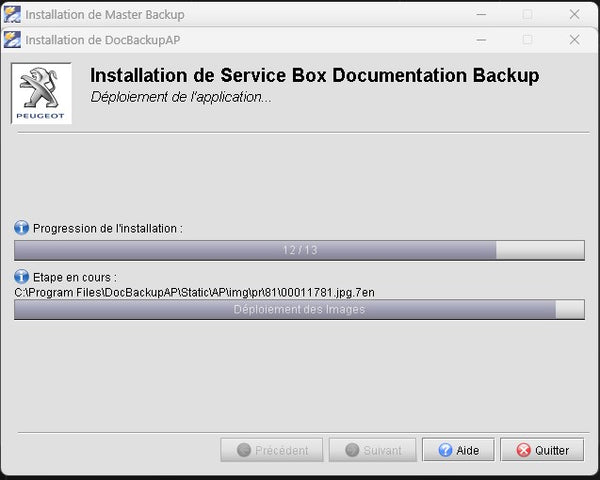
- Finally, click Finish.

- The final step is to patch the installation to prevent a message from appearing when opening Service Box or SEDRE.
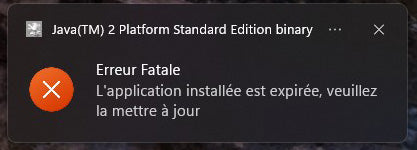
- Go back to the Peugeot Service Box folder. Access "Peugeot_SBox_2013-11_Instructions in French", then "Peugeot SBox 20 years of activation".
- Copy/paste the "info" file from the folder into:
- C:\Program Files\DocBackupAP\Resources
- C:\Program Files\SEDREAP\Resources
Congratulations, you can now open Service Box or SEDRE.

Note: When you launch SEDRE, please wait a while, depending on your computer's performance. Don't worry if your system appears frozen. You will see a small flashing icon in the taskbar, and a message indicating that preparation is underway will appear. Once Internet Explorer has finally opened SEDRE, click "YES" in the message to close this tab. Also, be sure to grant Internet Explorer full permissions and disable pop-up blocking.
As for Service Backup Documentation, the process is faster.